
The content of the article
- Utilities used
- The study of the image of memory
- conclusions
Our task is to identify the reasons for the hacking of a web service deployed on Oracle WebLogic Server and learn how to extract the main artifacts from a Windows RAM image.
According to the scenario, the network security monitoring device detected suspicious traffic originating from one of the organization's web servers. We must analyze the server's memory image and reconstruct the picture of the information resource being hacked.
UTILITIES USED
- Volatility Framework 2.6.1 is a Python version 2 tool for extracting artifacts from volatile memory samples.
- Volatility 3 is an updated artifact extraction tool developed in Python 3.
Let's load the archive file with the artifacts, extract the file ( SHA256:5b3b1e1c92ddb1c128eca0fa8c917c16c275ad4c95b19915a288a745f9960f39) from it and proceed to the study.memory.
THE STUDY OF THE IMAGE OF MEMORY
When working with this image, we will use the Volatility framework versions 2 and 3. Their main difference is described in the documentation . The convenience of working with the third version lies in the fact that it does not use operating system profiles, but is able to determine them on the fly, using Windows character tables. But most plugins are designed for the second version.
Let's get the operating system profile for working with the Volatility 2 utility.
python2.7 vol.py -f c63-bsidesjeddah-mem/memory.mem imageinfo
Operating system profile - Win2016x64_14393.
Before we start analyzing artifacts, we need to understand what system we are working with. To do this, we get the version of the operating system, the computer name, and the network address. Let's go over the registry keys using the printkey plugin.
python2.7 vol.py -f c63-bsidesjeddah-mem/memory.mem --profile=Win2016x64_14393 printkey -K "ControlSet001\Control\ComputerName\ComputerName"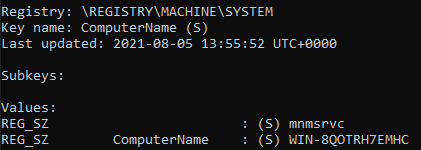
Computer name - WIN-8QOTRH7EMHC.
python2.7 vol.py -f c63-bsidesjeddah-mem/memory.mem --profile=Win2016x64_14393 printkey -o 0xffff808fe7e41000 -K "ControlSet001\Services\Tcpip\Parameters\Interfaces"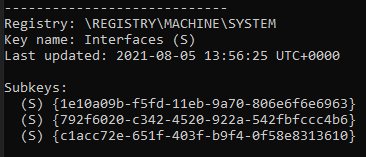
We got a list of network interface IDs. Let's check each of them.
python2.7 vol.py -f c63-bsidesjeddah-mem/memory.mem --profile=Win2016x64_14393 printkey -o 0xffff808fe7e41000 -K "ControlSet001\Services\Tcpip\Parameters\Interfaces\{792f6020-c342-4520-922a-542fbfccc4b6}"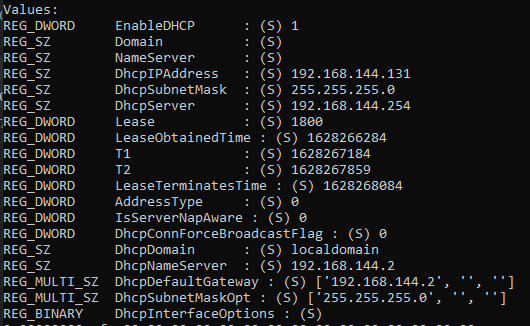
The computer's network address is , the IP address is given by the DHCP server .192.192.
Now we will get information about the version of the operating system.
python2.7 vol.py -f c63-bsidesjeddah-mem/memory.mem --profile=Win2016x64_14393 printkey -K "Microsoft\Windows NT\CurrentVersion"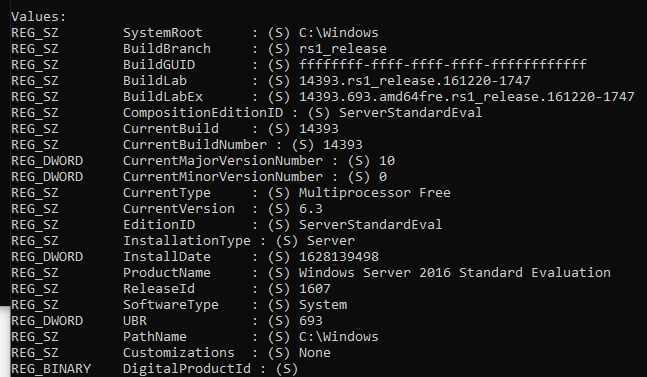
The operating system version is Windows Server 2016 Standard Evaluation.
We get the time that was recorded at the time of taking the image of the RAM. To do this, we will use the Volatility 3 utility plugin.windows.
python3 vol.py -f c63-bsidesjeddah-mem/memory.mem windows.info
System time - .2021-08-06
Next, we will try to restore the user's actions in the system. Let's analyze the history of the browser, in this case Internet Explorer. To do this, we will use the iehistory plugin.
python2.7 vol.py -f c63-bsidesjeddah-mem/memory.mem --profile=Win2016x64_14393 iehistory > c63-bsidesjeddah-mem/iehistory.txt

We were able to find out that on August 6, 2021, the user Administrator visited the .news.

0 commentaires:
Enregistrer un commentaire